A free color-slide puzzle in your browser: slide blocks across the yard into matching gates in as few moves as you can, over 63 levels and a daily puzzle.
Screenshots
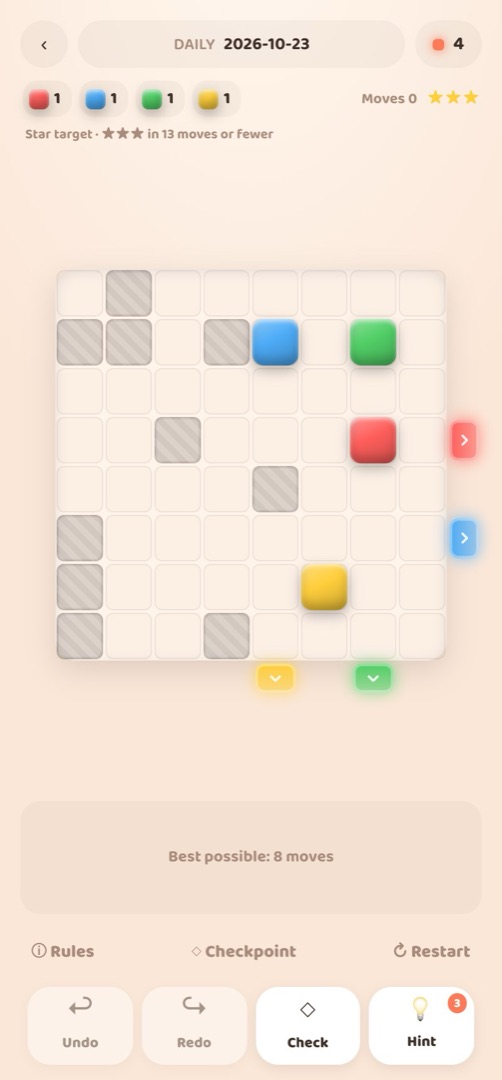
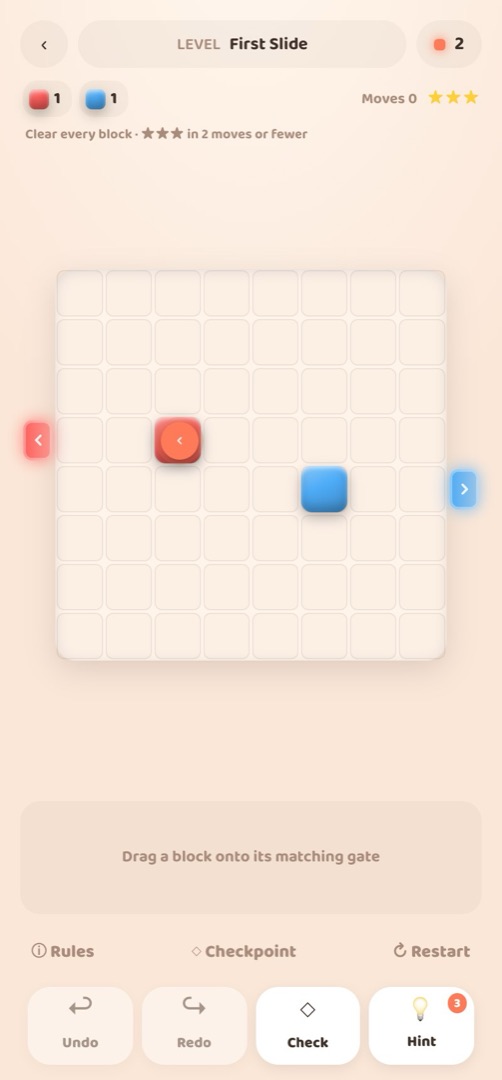
About Slideyard
Slideyard is a free color-slide puzzle game that runs in your browser with no download. Each yard is a small board of six to eight cells. Blocks slide in a straight line until something stops them, and every block has to leave through the gate of its own color.
The trick is in the stops. A block that slides past its gate needs another block parked in the right place to catch it, so you plan a few moves ahead and move blocks out of each other's way. Later chapters add moving lifts, block generators and boss levels.
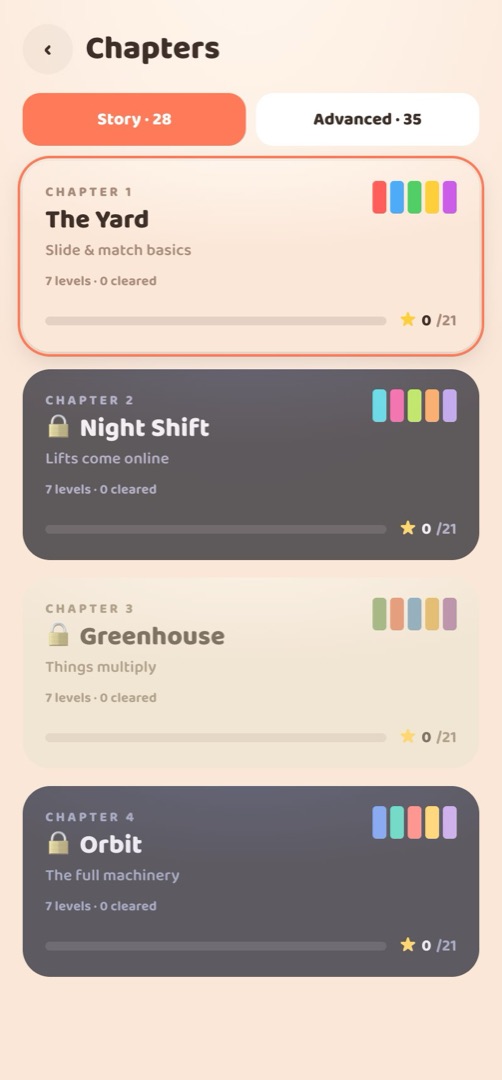
The campaign has 63 levels across nine themed chapters: 28 story yards that teach each idea, then 35 hand-picked advanced puzzles. When you finish, the Training Yard offers 21 endgame boards with exact minimum move counts from 4 to 24. There is also a new daily puzzle, a shop, undo and redo, and a free Check button that tells you whether the board can still be solved without giving away a move.
Features
- 63 campaign levels across nine themed chapters.
- Moving lifts, block generators and boss levels.
- Training Yard with 21 endgame boards and exact minimum move targets.
- A new daily puzzle every day.
- Unlimited undo and redo, checkpoints and replays of your best solutions.
- Satisfying feedback: squash and stretch, particles, screen shake and sound.
- Plays with mouse, keyboard or touch.
How to play
- Drag a block in a direction. It slides until it hits a wall or another block.
- Send each block out through the gate of the same color.
- Park blocks to act as stops for the ones that would slide too far.
- Clear the yard in as few moves as you can to earn every star.
- Stuck? Press Check to see if the board can still be solved, or undo a few moves.
Controls
| Input | Action |
|---|---|
| Drag a block | Slide it that way (a preview shows where it lands) |
| Click a block | Show four direction buttons |
| Tab | Move focus to a block |
| Arrow keys | Slide the selected block |
| Esc | Deselect |
| Input | Action |
|---|---|
| Drag a block | Slide it that way |
| Tap a block | Show four direction buttons |